A report can leave the tool two ways: as a shared link that opens in any browser, or as a PDF you download and attach to an email. A link always shows the audit as it stands now. A file is fixed — it outlives your report history and needs no account at the other end.
Downloads are available on Pro and Agency. On Plus you can share links and copy individual fix drafts, but not download a report.
The three documents
They differ by subject, not by depth. Two describe a single page; the third describes a whole project.
| Subject | Where you download it | |
|---|---|---|
| Technical Report | One page’s audit | Any saved report |
| Content Report | One page’s fixes | A report with generated fixes |
| Site Report | A whole project | The project dashboard |
Technical Report
The audit itself: what is wrong with the page and how badly. It carries the Overview — AI Visibility score, Answer Readiness, the verdict and the priority assessment, the core metrics, and the trend against the previous audit — then AI Crawlability, Content Visibility, Agentic Browsing, Authority checks, Lab, and the page’s audit history.
Sections only appear when there is something in them. A page that was never run through Agentic Browsing does not get an empty Agentic Browsing section.
Content Report
The fixes rather than the findings: every draft generated for the page, collected into one document, grouped by the check it answers, with the placeholders you still need to confirm highlighted. It also carries what is still open, and the Prompt Discovery and Prompt Fit analyses behind the drafts.
Downloading it never generates anything new — it only gathers drafts you have already created, and costs nothing against your Optimizations allowance.
There is also an on-screen version, reached from Full set → Content Report on the fix plan card, with Print / Save as PDF, Download Markdown and Copy all. Use that one when a writer wants the drafts as text rather than as a document.
Site Report
A whole project in one PDF, matching what your project dashboard shows:
- Overview — site health and verdict, the score for each dimension, how much of the site was audited, and the trend against the previous run.
- What to fix — one sheet per issue, saying why it matters and naming the pages it affects.
- Page register — every audited page with its status and score, so nothing is left implied.
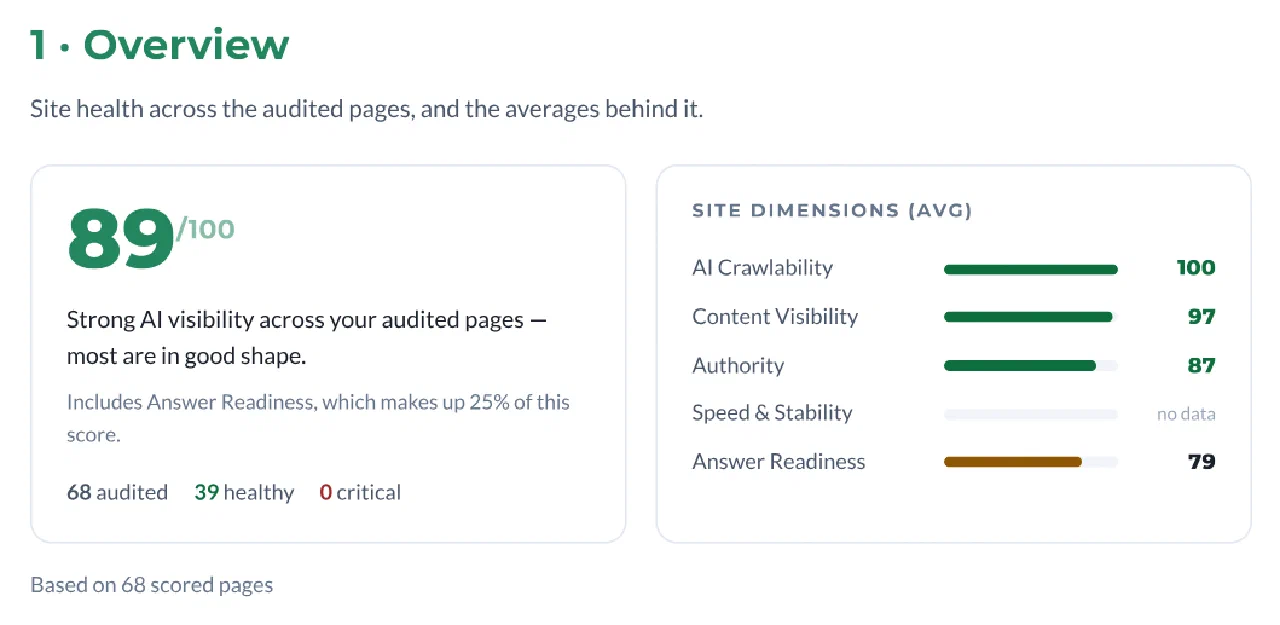
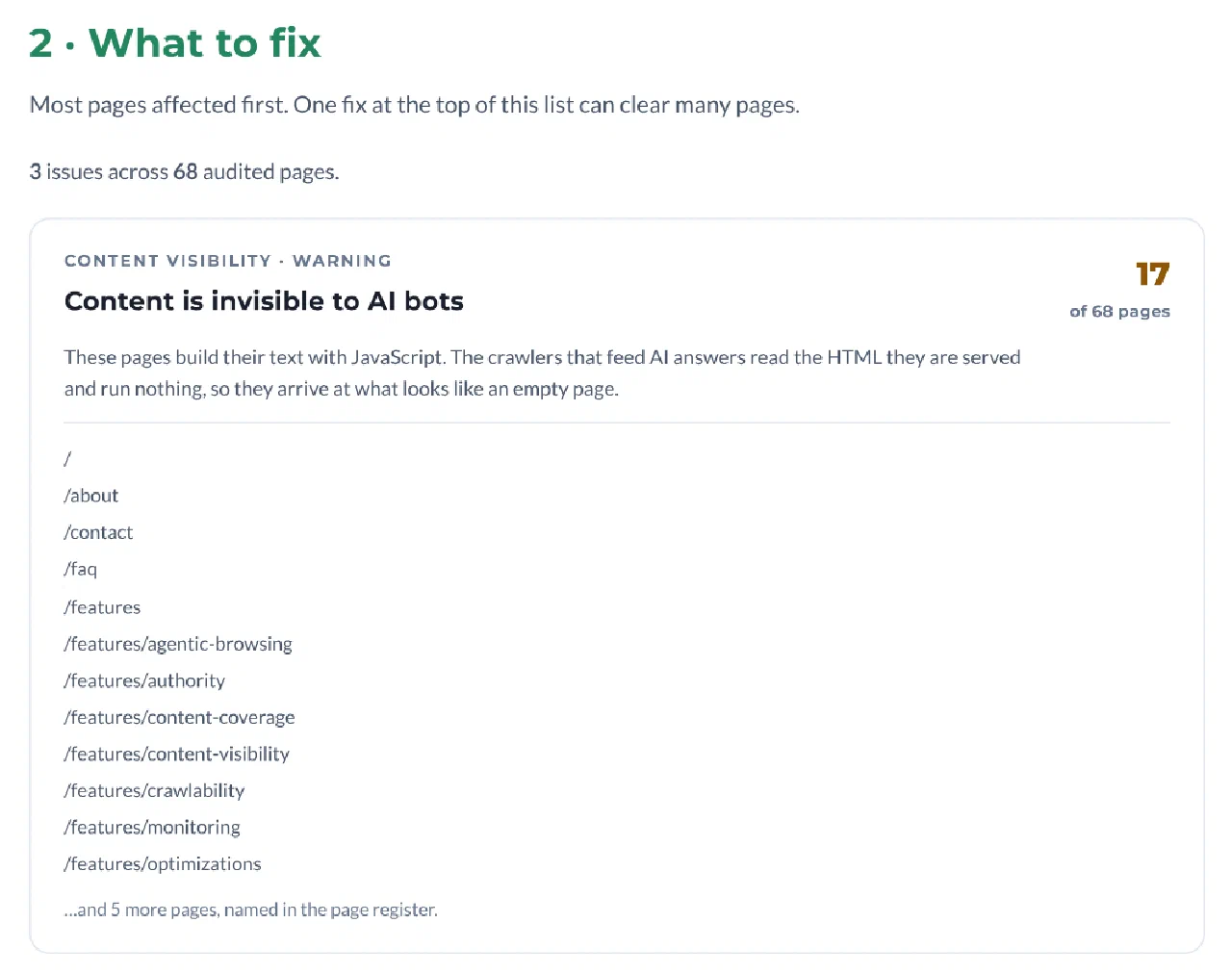
The button sits on the project dashboard and reads Download Site Report. It appears once the project has audited pages; there is nothing to print before then.
If you have filtered the page list, the filter travels with the download. The register narrows to the pages you are looking at, and a line in the document says so. The site score, the issue count and the affected-page counts do not change — those describe the whole site, and a report that quietly recalculated them over a filter would be telling the reader something different from the dashboard.
Choosing what goes in — Agency
On Agency, pressing Download opens a dialog first. You choose which sections go into this document, and on a Site Report you can go further and leave out an individual issue sheet.
Three things are worth knowing before you use it:
- No number moves. Leaving out an issue sheet does not change site health, the issue count, or any affected-page count — on the dashboard or in the document. You are choosing what to print, not what to measure.
- Exclusions are disclosed as a count, never by name. The document says how many sheets were left out. It does not tell your client which ones, and it never implies the issues were resolved.
- Some sections cannot be removed. Anything the report would be misleading without stays in.
Saving it for next time
Under Report defaults in a project’s settings you can set what each of the three documents contains by default for that client, so every export comes out the same without deciding again. The dialog still opens on each download, starting from those defaults.
Per-issue choices are deliberately not savable. An issue you exclude today may be fixed, come back, and be excluded again months later without anyone deciding that — so those choices last for one document only.
Branding
On Agency, downloads carry your client’s brand name and logo instead of ours, set per project. See White-label reports, which also covers leaving a report deliberately unbranded.
Availability
| Feature | Free | Plus | Pro | Agency |
|---|---|---|---|---|
| Shareable links | — | Yes | Yes | Yes |
| Technical Report | — | — | Yes | Yes |
| Content Report | — | Copy drafts individually | Yes | Yes |
| Site Report | — | — | Yes | Yes |
| Choose what goes in | — | — | — | Yes |
| White-label branding | — | — | — | Yes |
Downloading a report does not consume audit credits. See Plans and limits for what each tier includes.