Why we ask you to check
When BeSeenByAI says “AI crawler access could be blocked”, it means our test request to your page was refused — a 403, a 429, a challenge page, or a server error.

That is worth acting on, but it is not proof that AI crawlers are blocked. Security tools do not decide who gets in based on the user agent alone. They also weigh the IP address, its reputation, and the shape of the request. Our checks run from datacenter IPs, and the real crawlers run from their own published address ranges, so the two can be treated very differently.
We have measured this on live sites: the same page, within seconds, returned 403 to a browser user agent, 200 to PerplexityBot, and 520 to GPTBot. A single refusal tells you something is filtering automated traffic. It does not tell you which traffic.
Your logs do. They record what actually happened when the real crawlers visited.
What you are looking for
The report’s per-bot breakdown tells you which crawlers were flagged, so you know which ones to look up in your logs.
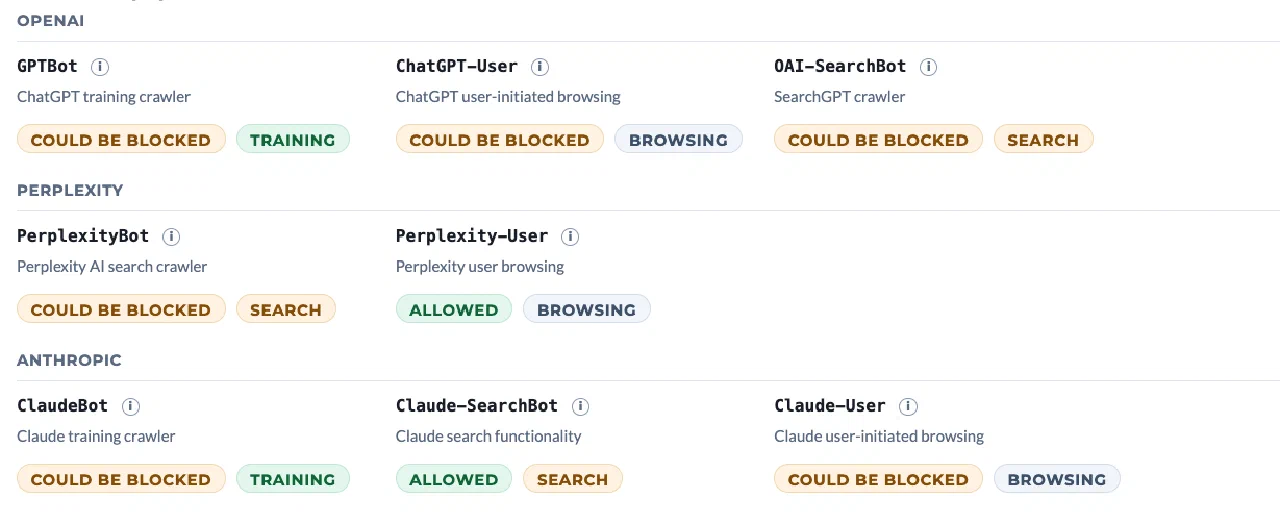
Search your logs for these user agent strings:
| Crawler | Powers | User agent contains |
|---|---|---|
| GPTBot | ChatGPT training | GPTBot |
| OAI-SearchBot | ChatGPT search | OAI-SearchBot |
| ChatGPT-User | ChatGPT live browsing | ChatGPT-User |
| ClaudeBot | Claude training | ClaudeBot |
| Claude-User | Claude live browsing | Claude-User |
| PerplexityBot | Perplexity search | PerplexityBot |
Then read the status code on those requests:
- 200 or 301/302 — the crawler got through. Your access is fine, and our refusal was our test being filtered, not a real block.
- 403 or 401 — genuinely blocked. Something is refusing the crawler by rule.
- 429 — rate-limited. Often a limiter tuned for human traffic treating a crawl burst as abuse.
- 503 or 520-527 — a challenge or edge error, typically a bot-protection product.
- No entries at all — the crawler has not tried recently, or it is being blocked before it reaches your origin (at the CDN edge). Check your CDN logs, not just your server logs.
That last case is the one people miss most often. If your bot protection sits at the edge, your origin server never sees the request, so an empty origin log looks identical to “no crawler visited.”
Cloudflare
Most blocking we see traces back to Cloudflare, usually to a setting nobody deliberately turned on.
Check the traffic first. In the Cloudflare dashboard, open Security → Events (on newer plans, Security → Analytics). Filter by:
- User agent contains
GPTBot, then repeat forClaudeBotandPerplexityBot - Set the time range to the last 24 hours or longer
Each row shows the action taken — Allow, Block, Challenge, or Managed Challenge — and the rule that fired. If you see Block or Challenge on AI crawler user agents, you have found your answer, and the rule name tells you exactly what to change.
The usual causes:
- Bot Fight Mode (Security → Bots) — available on every plan including Free, and it challenges a broad range of automated traffic. It does not have a per-bot allow list, so the fix is usually to turn it off and use a WAF rule if you still want bot filtering.
- Super Bot Fight Mode (Pro and above) — set “Definitely automated” to Allow if you want AI crawlers through, or add a skip rule for verified bots.
- WAF custom rules (Security → WAF → Custom rules) — look for anything matching on
cf.client.bot, a user agent pattern, or an “AI scraper” template. - AI Scrapers and Crawlers managed rule — Cloudflare ships a one-click block for AI crawlers. If it is enabled, it is doing exactly what it says.
- Rate limiting rules — check thresholds if you are seeing 429s.
To allow AI crawlers explicitly, create a WAF custom rule with the action Skip (skipping remaining rules and bot protection), matching on the user agent strings above. Put it above your blocking rules — Cloudflare evaluates in order.
Note that Cloudflare’s free logging only retains Security Events for a limited window on lower plans. If you find nothing, widen the time range before concluding the crawlers never came.
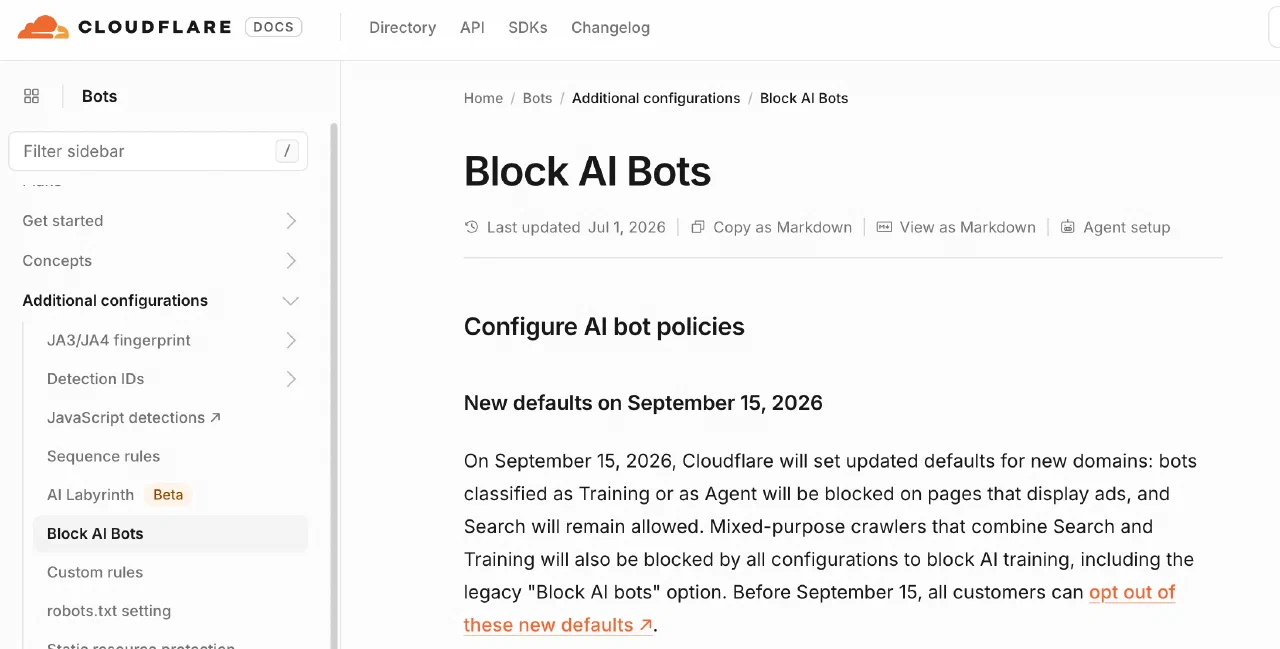
AI bot policies and the September 15, 2026 defaults. Cloudflare now splits AI crawlers into three policies — Search, Agent, and Training — under Security → Settings → Configure AI bot policies (all plans, including Free). Each can allow, block only on ad-displaying pages, or block everywhere. Two things catch people out:
- A Training block reaches further than expected. Multi-purpose crawlers like Googlebot, Applebot, and BingBot crawl for Search and Training in a single bot, and the most restrictive rule wins — so blocking Training also blocks them, which can quietly cost you Google visibility. The legacy single “Block AI bots” option counts as blocking Training.
- From 15 September 2026, new domains onboarding to Cloudflare block Training and Agent on ad-displaying pages by default, with Search left allowed. If you made a deliberate choice, you are not affected; otherwise you can opt out in Security settings before the date.
nginx
Your access log is usually at /var/log/nginx/access.log.
grep -Ei 'gptbot|claudebot|perplexitybot|oai-searchbot' /var/log/nginx/access.log | tail -50
In the default combined log format, the status code is the field right after the request string:
20.171.207.5 - - [06/Aug/2026:14:22:31 +0000] "GET /pricing HTTP/1.1" 200 18432 "-" "Mozilla/5.0 (compatible; GPTBot/1.2; +https://openai.com/gptbot)"
To count outcomes per crawler:
grep -Ei 'gptbot|claudebot|perplexitybot' /var/log/nginx/access.log \
  | awk '{print $9}' | sort | uniq -c | sort -rn
If logs have rotated, check access.log.1 and the gzipped archives with zgrep.
Common nginx-side blocks: a map $http_user_agent $bad_bot block, an if ($http_user_agent ~* ...) { return 403; } rule in your server block, or limit_req zones that are too tight for crawl bursts.
Apache
Your access log location depends on the distribution — commonly /var/log/apache2/access.log (Debian/Ubuntu) or /var/log/httpd/access_log (RHEL/CentOS).
grep -Ei 'gptbot|claudebot|perplexitybot|oai-searchbot' /var/log/apache2/access.log | tail -50
The field layout matches nginx’s combined format, so the same awk '{print $9}' trick works for counting status codes.
Common Apache-side blocks: BrowserMatchNoCase rules combined with Deny from env=, RewriteCond %{HTTP_USER_AGENT} rules returning [F], mod_security rule sets, or a security plugin writing rules into .htaccess on your behalf. Check .htaccess in your web root as well as the main config — WordPress security plugins often write there.
Vercel
Open your project in the Vercel dashboard and go to the Logs tab (Runtime Logs on some plans). Filter by path, and widen the time range — the default view is short.
Vercel’s log retention depends on plan: Hobby keeps very little, Pro keeps more, and Enterprise keeps the most. If you need reliable crawler evidence over time, add a log drain to a service that retains longer.
Also check:
- Firewall (Project Settings → Firewall) — Vercel’s WAF and Attack Challenge Mode. Attack Challenge Mode challenges most non-browser traffic and will block AI crawlers while it is on.
- Bot protection rules — anything matching on user agent or classified bot traffic.
- Middleware —
middleware.tsruns before your routes. A user-agent check there can block crawlers without appearing in any dashboard setting.
Other hosts and CDNs
The principle is the same everywhere: find the request log, filter by user agent, read the status code.
- AWS CloudFront — enable standard logging to S3, or use real-time logs. The
cs(User-Agent)andsc-statusfields are what you want. Also check any AWS WAF web ACL attached to the distribution. - Fastly — logging must be configured to an endpoint; check your VCL for user-agent conditions.
- Akamai — use Log Delivery Service, and check Bot Manager categories. Akamai classifies many AI crawlers as bots by default.
- Managed WordPress (WP Engine, Kinsta, SiteGround, Flywheel) — most run platform-level bot mitigation you cannot see from the WordPress admin. Look for an access log in the host’s own dashboard. If nothing explains the block, open a support ticket and include the evidence below — these hosts can usually allow-list crawlers for you.
- Shopify, Wix, Squarespace — you generally cannot access raw logs or change bot rules. If our test is refused on these platforms, contact their support with the crawler user agents you need allowed.
Reproducing the block yourself
You can test directly from a terminal:
curl -I -A "Mozilla/5.0 (compatible; GPTBot/1.2; +https://openai.com/gptbot)" https://example.com/your-page
Compare it against a normal browser user agent:
curl -I -A "Mozilla/5.0 (Windows NT 10.0; Win64; x64) AppleWebKit/537.36 (KHTML, like Gecko) Chrome/120.0 Safari/537.36" https://example.com/your-page
If the first is refused and the second succeeds, something is filtering on the user agent, and you can act on it directly.
Bear in mind this is the same kind of evidence our own test produces, with the same limitation: your IP is not the crawler’s IP. A curl that gets through is good news; a curl that gets blocked still needs your logs to confirm whether the real crawler is affected.
Verifying a crawler is genuine
If you find crawler traffic in your logs and want to confirm it is authentic rather than something spoofing the user agent, the major providers publish their IP ranges:
- OpenAI publishes ranges for GPTBot, OAI-SearchBot, and ChatGPT-User
- Anthropic publishes ranges for ClaudeBot
- Perplexity publishes ranges for PerplexityBot
This matters if you want to allow crawlers by IP rather than by user agent — a stronger approach, since user agents can be faked by anyone.
After you fix it
Once you have changed a rule, re-run the audit in BeSeenByAI. The verdict updates from the fresh check.
If your logs show the crawlers were getting through all along, no change is needed — our test was being filtered while the real crawlers were fine. That is a legitimate outcome, and it is exactly why this verdict asks you to confirm rather than telling you the page is blocked.
Related
- The AI Crawlability tab — how site rules and live access are assessed
- AI bots reference — the full list of crawlers we check and what each one does
- Training, search, and user bots — why the crawler behind a given AI answer isn’t always the one your fix needs to target