Monitoring is an Agency-plan feature — a follow-up to auditing that keeps watch on pages you’ve already fixed. It re-audits your tracked URLs on a schedule and emails you when something meaningfully changes — a grade drop, a bot block, or content disappearing. You only get notified when something actually differs from the previous run.
How to set up monitoring
Monitoring switches itself on with the pages you track. There is no separate “start monitoring” step.
- Open a project and star the pages you want watched, from the project Dashboard. Starring the first page creates a daily monitoring schedule for that project automatically.
- Open Monitoring → Settings to change anything you don’t want on its defaults: the frequency, which change types count, and how much of a change it takes to email you.
- Save.
Starring more pages adds them to the same schedule. Unstarring the last page pauses the schedule but keeps your settings, so re-starring a page later picks up exactly where you left off.
Schedule options
Daily — runs once per day. Each project is given a fixed hour of the day so that runs are spread across the day rather than all landing at once; you can change it under Time (UTC).
Weekly — runs once per week on the day and time you choose.
None — monitoring is saved but disabled. No runs will execute until you set a schedule.
You can pause monitoring at any time without losing your settings. A paused project skips scheduled runs until you re-enable it. Choosing None is a deliberate opt-out — starring another page will not switch monitoring back on until you set a schedule again.
Change types
You can choose which categories of change trigger alerts. Each category covers a distinct layer of the audit:
Content — page content and rendered copy changes. Fires when what a bot can read on the page changes between runs.
Crawlability — robots.txt, noindex, HTTP status, and AI bot access changes. Fires when a bot’s access status changes, including new blocks or mismatch findings.
Speed & Stability — TTFB, CLS, and INP grade changes.
Authority — authority grade, critical gate, and failed check changes. Fires when structured data or entity signals change in a way that affects the authority score.
You can enable any combination. If none are checked, monitoring will run but will not send alerts.
Alert sensitivity
Each change type has its own Alert me on setting, so you can be strict about the things that cost you traffic and relaxed about the things that move on their own. There are three levels:
- Any change
- Meaningful changes
- Only significant changes
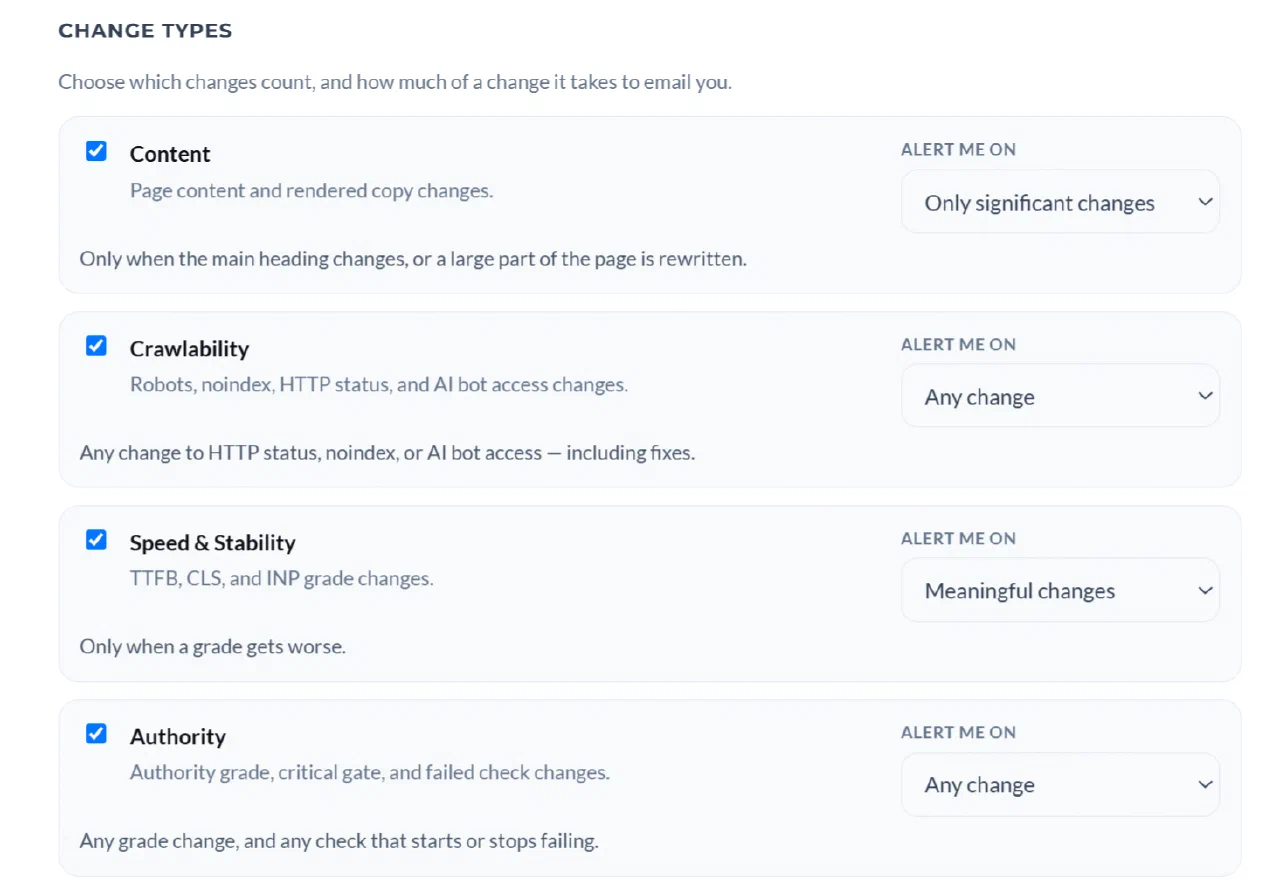
What each one means depends on the change type, because each layer of the audit moves differently.
Content
- Any change — Any edit at all, including a changed date or a rotating quote.
- Meaningful changes — New or reworded headings, and text edits beyond a few words.
- Only significant changes — Only when the main heading changes, or a large part of the page is rewritten.
Crawlability
- Any change — Any change to HTTP status, noindex, or AI bot access — including fixes.
- Meaningful changes — Noindex and bot-access changes, plus status changes that start blocking.
- Only significant changes — Only when the page becomes blocked, noindexed, or closed to an AI bot.
Speed & Stability
- Any change — Any grade change, better or worse.
- Meaningful changes — Only when a grade gets worse.
- Only significant changes — Only a steep drop, or a fall into a grade worth acting on.
Authority
- Any change — Any grade change, and any check that starts or stops failing.
- Meaningful changes — When the grade gets worse, or a check starts failing.
- Only significant changes — Only a large grade drop, or a required check starting to fail.
The defaults are not the same for every type. Content and Speed & Stability start on Meaningful changes; Crawlability and Authority start on Any change. A blocked bot or a noindex flip is worth an email on its own, whereas a page whose date stamp moves overnight is not — and a page that gets faster does not need to interrupt you.
If you are getting more email than you want, lower the sensitivity of the noisy type rather than turning the whole category off. Turning a type off means you will not hear about it at all, including when it genuinely breaks.
Every alert email carries a Change what triggers these emails link in the footer that takes you straight to these settings.
Email notifications
Two notification types are available:
Changed pages detected — sends a summary when one or more tracked URLs show changes matching your selected change types and sensitivity.
Run failures / blocked pages — sends an alert when we could not check one of your pages and it is something on your side, such as:
- the page refused our request (401 or 403)
- the page could not be found at that address (404, 410, or a DNS failure)
- the saved URL could not be read
- the account reached its monthly audit quota
These are sent when the state changes, not on every run — a page that has been returning 404 for a week does not email you every day.
Failures on our side — a renderer timing out, our own capacity limits — are not sent to you. They are routed to us instead, because they say nothing about your page. If a run failed for our reasons, the page is simply re-checked on the next run.
Reviewing monitoring results
Each completed monitoring run appears in the project’s monitoring history. You can open any run to see a per-URL summary of what changed.
For any URL with changes, open the report and use Compare Mode to see exactly what shifted between the current run and the previous baseline. Change badges appear throughout the report tabs next to anything that differs.
Pausing and resuming
You can pause monitoring at any time from the Monitoring settings. Pausing saves your schedule and alert configuration — runs are just skipped until you resume.
If a URL is removed from your tracked list, it stops appearing in future monitoring runs automatically.
Common questions
Why didn’t I get an alert even though something changed?
Four things to check, in order. The change type has to be enabled — a change in a type you turned off does not alert. The sensitivity for that type has to be low enough to count the change; on Only significant changes, a small edit is deliberately ignored. The “Changed pages detected” notification has to be on. And check your spam folder once — alert emails come from contact@beseenby.ai.
Why did I get fewer alerts than I used to? That is deliberate. Alerts are now grouped and filtered so a single event produces a single email line rather than several, and low-value changes are held back at the default sensitivity. If you want the old behaviour for a specific type, set it to Any change.
Can I monitor URLs not in a project? No. Monitoring only runs on URLs that are tracked in a project. To monitor a URL, add it to a project’s tracked list first.
How long does a monitoring run take? Each URL in the run takes approximately 30 seconds to audit. A project with 10 tracked URLs takes roughly 5 minutes per run.