The next wave of LLM-driven traffic will not only read your pages. It will try to use them.
In agentic browsing, an AI runs a browser and attempts tasks: search, filter, add to cart, book, sign up, log in. For that to work, the agent needs a reliable way to identify controls and confirm outcomes. On many stacks, that “interface” is the accessibility tree, and ARIA is one of the inputs that shapes it.
How Agents Identify Controls
Most people assume AI reads a website the way a human does. That can be true for crawlers that only fetch and extract text. It is less true for the new wave of AI agents meant to interact with your site.
Tools such as OpenAI’s Operator are built to click, type, scroll, and complete tasks inside a browser. When you move from “read” to “do,” the agent needs a reliable way to identify what elements are and what they do.
For an agent, your CSS and visuals are not the primary interface. The primary interface is often the accessibility tree: the structured representation designed for assistive technologies. Practical writeups on agentic browsing note that agents use the accessibility tree to understand what is on the page and what is clickable.
That makes ARIA more than a compliance detail. ARIA roles, names, and states are machine-readable signals that help an agent tell controls apart, identify them, and confirm state changes.
ARIA labels are becoming part of the machine-readable interface for the agentic web. If key interactive elements are missing accessible names, roles, or states, an agent can fail to find the control, fail to confirm the result of a click, and abandon the task, even if the UI looks perfect to a human.
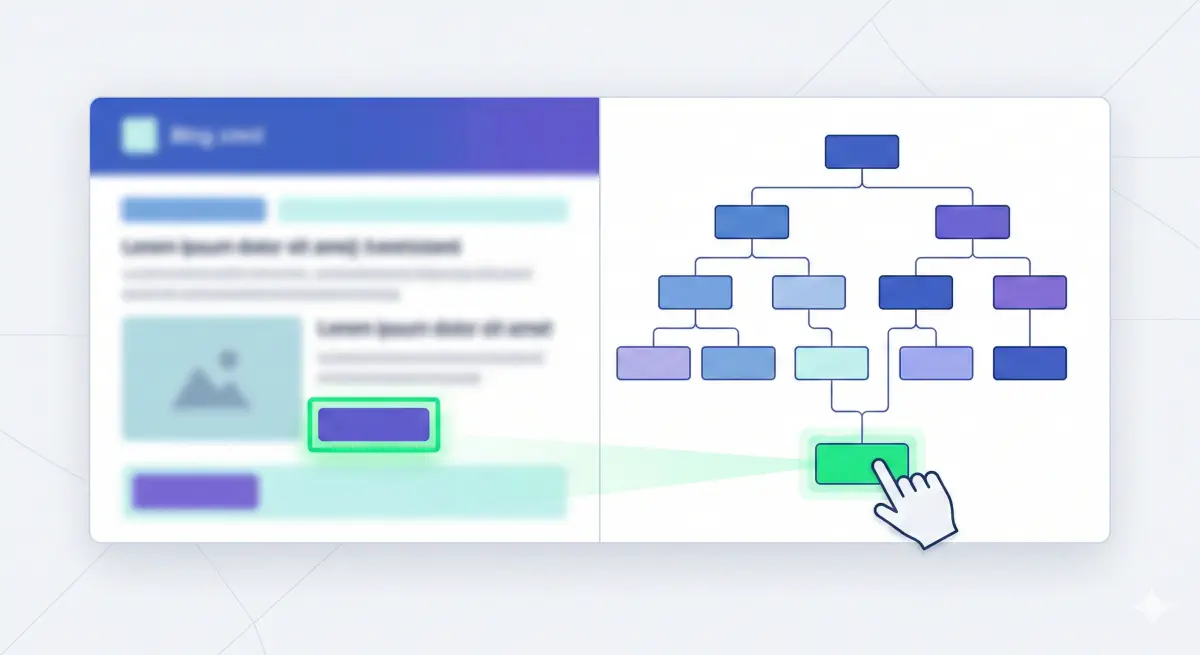
The accessibility tree is the agent’s map of your interface. ARIA is how you populate it.
The Accessibility Tree Is Your Agent Interface
When a browser loads a page, it builds more than the DOM. It also builds an accessibility tree: a structured representation of interactive and meaningful content (roles like “button,” names like “Add to cart,” states like “expanded”). This is the data structure screen readers use.
Agentic systems often rely on this structure because it gives them a semantic map of the interface. It removes much of the visual noise and exposes intent in a machine-readable way. (No Hacks Pod on how AI agents see websites)
ARIA is a key input into that tree. The WAI‑ARIA specification defines roles, states, and properties that describe accessible user interface elements and improve interoperability of web content and applications.
Agents need three things to operate reliably:
- Role: what kind of control is this (button, link, textbox, dialog)?
- Name: how do I identify it (“Checkout”, “Continue”, “Apply filters”)?
- State: did my action work (“expanded”, “selected”, “disabled”, “invalid”)?
If any of these are missing or misleading, the agent falls back to guesswork from pixels or brittle selectors, and success rates drop.
What ARIA Labels Actually Are
“ARIA labels” usually means: the machine-readable information that lets software identify and operate UI elements. ARIA is a W3C specification that defines roles, states, and properties to improve accessibility and interoperability, especially for custom components.
For agentic browsing, you only need a small set of patterns that make the accessibility tree unambiguous: what a thing is, what it is called, and what state it is in.
1. Accessible name (how an agent finds the right control)
Browsers compute an element’s accessible name using the Accessible Name and Description Computation specification. Two attributes matter most:
aria-labelledby: uses existing page text as the element’s name.aria-label: provides a direct string name, useful for icon-only controls.
2. Role (what kind of control it is)
If you are not using native HTML controls, roles help expose intent for custom widgets.
3. State (how the agent confirms progress)
Agents need visible confirmation, and state should be machine-readable:
aria-expandedfor menus/accordionsaria-disabledfor unavailable actionsaria-selectedfor tabs/options
These are part of the ARIA model of states and properties.
4. Description and errors (how the agent recovers)
aria-describedbylinks an input to help/error text.aria-invalidmarks invalid inputs and supports validation feedback loops.
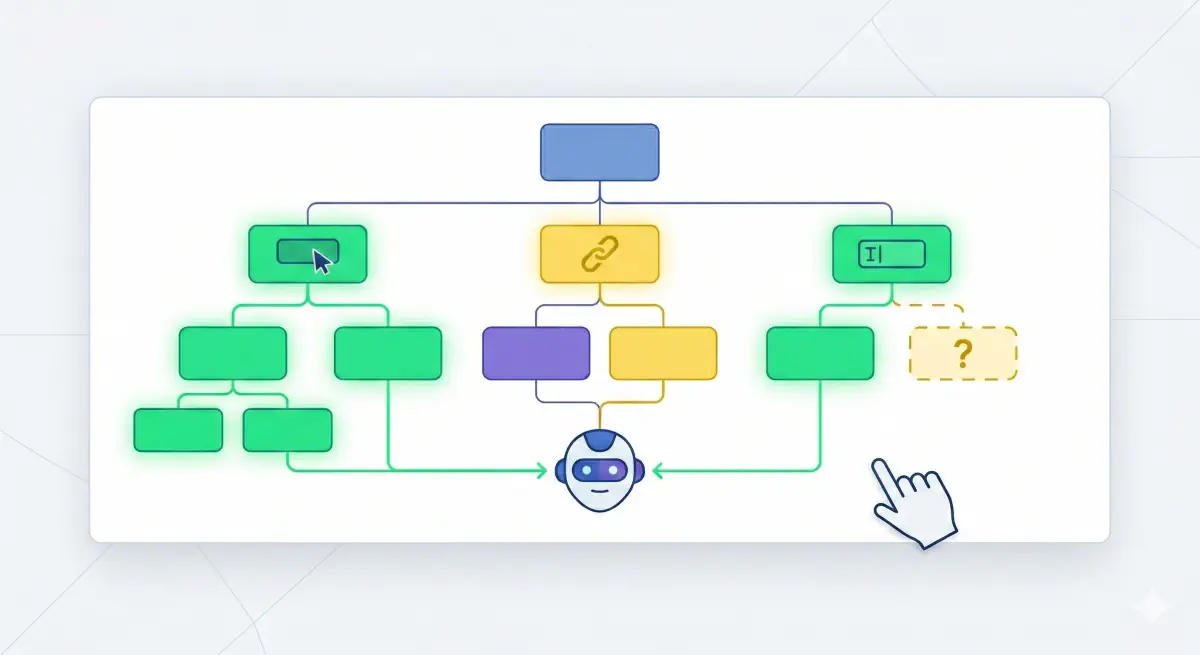
Role tells the agent what a control is. Name tells it which one. State tells it what happened.
Before / After Examples That Make Agents Reliable
Agent failures usually look like this: the agent can’t find the right control, can’t confirm what happened after a click, or can’t recover from a form error. The fix is the same: expose a clear role, a clear name, and a clear state in the accessibility tree.
Icon-Only Buttons
Before:
<button class="icon-btn">
  <svg aria-hidden="true"></svg>
</button>
After:
<button class="icon-btn" aria-label="Search">
  <svg aria-hidden="true"></svg>
</button>
aria-label provides an accessible name for elements that support naming.
Inputs and Filters
Before:
<div class="field-label">Email</div>
<input type="email" />
After (native label):
<label for="email">Email</label>
<input id="email" type="email" />
After (custom layout):
<div id="emailLabel">Email</div>
<input type="email" aria-labelledby="emailLabel" />
aria-labelledby references other elements to compute an accessible name.
Expand/Collapse Controls
Expose machine-readable open/closed state:
<button aria-expanded="false" aria-controls="filtersPanel">
  More filters
</button>
<div id="filtersPanel" hidden>...</div>
State is part of the ARIA model that improves interoperability of dynamic UI.
Modals and Dialogs
Represent a modal as a dialog with a name:
<div role="dialog" aria-labelledby="loginTitle" aria-modal="true">
  <h2 id="loginTitle">Sign in</h2>
</div>(MDN’s dialog role documentation)
Form Errors
Make failure machine-readable:
<label for="email">Email</label>
<input id="email" type="email" aria-invalid="true" aria-describedby="emailError" />
<div id="emailError">Enter a valid email address.</div>
WCAG’s ARIA21 technique describes using aria-invalid to identify fields that failed validation.

Each pattern solves a specific agent failure mode: can’t find it, can’t confirm it, can’t recover from it.
Audit ARIA for Agent Readiness
An “agent-ready” UI is simple to define: can an AI browser reliably find the right control, operate it, and confirm state changes. That maps to role, accessible name, and state. ARIA provides the role/state model, and accessible names follow the Accessible Name and Description Computation specification.
Start With the Flows Agents Will Attempt
Pick 3–5 “do” flows (search/filter, add to cart, checkout/booking, lead form, login). Audit only the interactive elements in those flows.
Inspect What the Browser Exposes
Chrome DevTools lets you inspect accessibility properties, including the accessibility tree and computed properties.
For each key control, check:
- Role: is it exposed as what it is (button, link, textbox, dialog)?
- Name: does it have a clear, unique accessible name?
- State: is state exposed when it changes (expanded, selected, disabled, invalid)?
Run a Targeted Name Coverage Scan
Most agent failures here are “I can’t identify the control,” which is an accessible-name problem. A targeted Axe scan catches high-impact issues quickly, including “ARIA input fields must have an accessible name.”
Prioritize Fixes in This Order
- Clickables with no accessible name (icon buttons, empty links)
- Forms that can’t explain failure (no invalid/error wiring)
- Hidden UI with no exposed state (menus, accordions, tabs)
- Custom widgets that should have been native elements (native elements produce better semantics by default, per the WAI-ARIA specification)

Focus the audit on the flows agents will actually attempt, not the full UI surface.
Agent-Ready Checklist for Money Flows
This is a narrow “definition of done” for agentic browsing readiness:
- Every clickable control has a unique accessible name. Prefer visible text or
aria-labelledby; usearia-labelfor icon-only controls. Names are computed by browser rules per the AccName specification. - Prefer native elements; use ARIA as fallback. If you build a custom control, expose a correct role and required properties for that role. W3C ACT rules formalize “elements with role must have required states and properties.”
- State is exposed for open/close, selection, and disablement. Menus expose expanded state, tabs expose selected state, disabled actions expose disabled state. (WAI-ARIA specification)
- Dialogs/blockers are represented as dialogs with a clear accessible name. (MDN’s dialog role documentation)
- Forms can explain failure without visuals. Invalid fields are marked invalid and help/error text is associated programmatically. (WCAG ARIA21 technique) (MDN’s aria-describedby documentation)
- “Name coverage” scan is clean on critical templates. No unnamed buttons or inputs in key flows. (Deque’s Axe rule for ARIA input field names)

A narrow definition of done: agents can find it, operate it, and confirm the outcome without guessing.
Treat ARIA as Part of How Agents Understand the Interface
If AI browsers are going to operate your site, they need a stable, semantic interface. In practice, that interface is the accessibility tree, built from native HTML semantics plus ARIA roles, names, and states. (WAI-ARIA specification)
The practical promise here is not “ARIA makes you show up in LLM answers.” The practical promise is reduced failure modes: agents can find controls, confirm state changes, and recover from form errors without guessing from visuals.
A safe way to execute is narrow scope: pick your money flows, fix accessible-name coverage first, then add the minimum state and error semantics that make progress machine-readable.
BeSeenByAI’s Agentic Browsing check fits into this as a diagnostic tool: it helps surface machine-readability and interaction-readiness issues that can block agents from completing tasks on your site, so you can fix those blockers before moving on to broader optimization work.
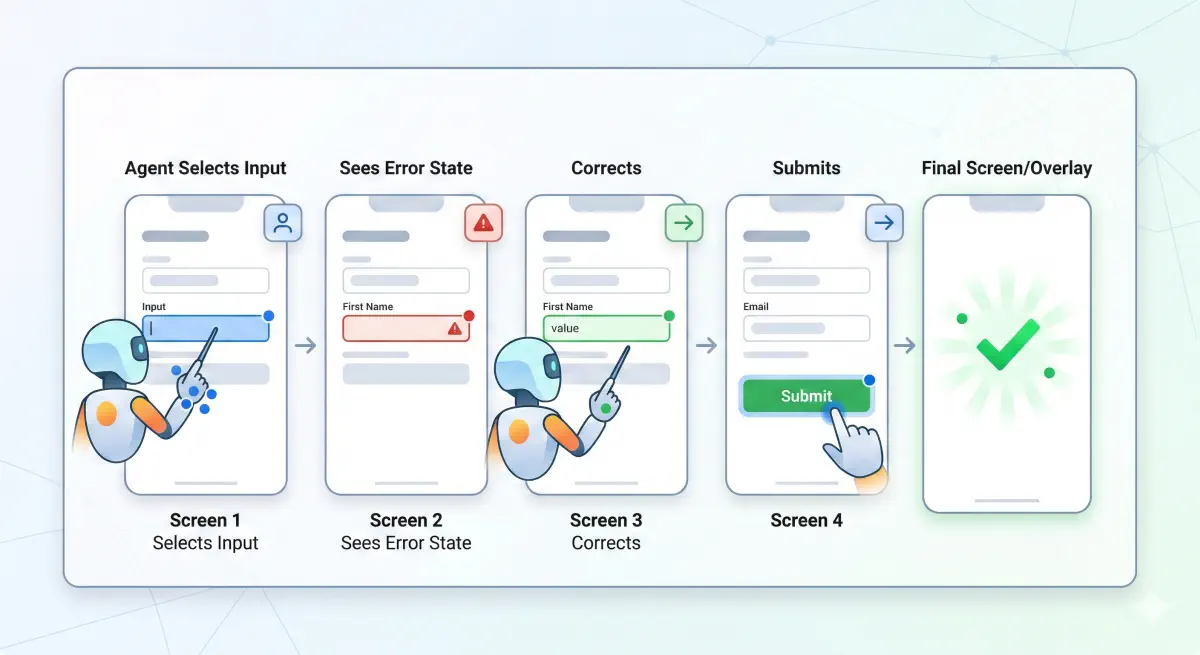
Start narrow: money flows, name coverage first, then state and error semantics.